The Ultimate Guide to the Best AI Command Bar for Windows

Introduction
Artificial intelligence is changing how people interact with their computers, making everyday tasks faster, smarter, and more efficient. One of the latest innovations is the AI command bar for Windows—a powerful productivity tool that combines natural language processing with system automation. Instead of navigating through multiple menus or opening several applications, users can simply type a command or ask a question to perform tasks instantly.
In 2026, AI command bars are becoming an essential part of modern Windows workflows. Whether you’re a student, developer, business professional, content creator, or IT administrator, these tools can help automate repetitive tasks, launch applications, search files, generate content, and improve overall productivity.
This guide explores everything you need to know about AI command bars for Windows, including their features, benefits, use cases, and best practices.
What Is an AI Command Bar for Windows?
An AI command bar for Windows is an intelligent interface that allows users to interact with their computer using natural language commands instead of traditional menus or keyboard shortcuts.
Powered by artificial intelligence and automation technologies, it can:
- Launch applications
- Search files and folders
- Generate text and summaries
- Execute system commands
- Automate workflows
- Control Windows settings
- Access online information
- Integrate with third-party applications
The goal is to simplify everyday computer tasks while reducing manual effort.
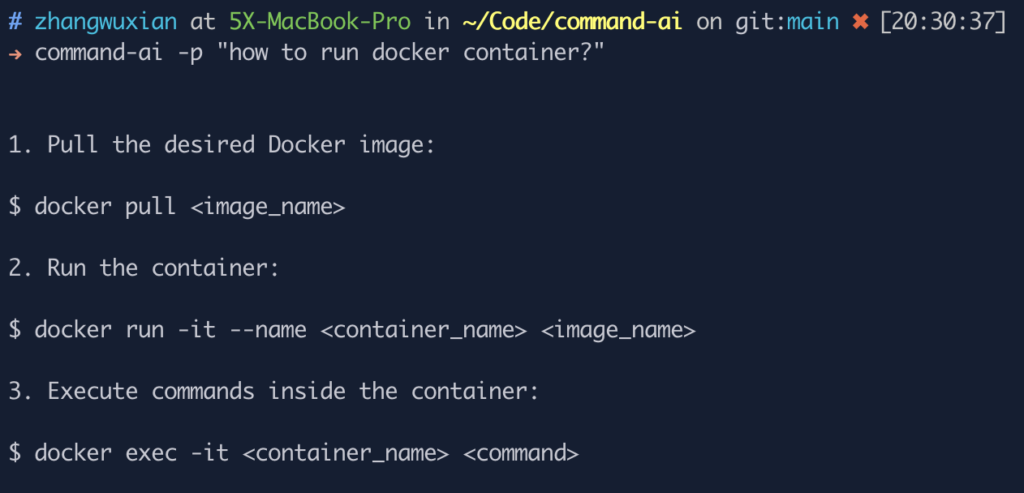
Why AI Command Bars Are Becoming Popular
Modern computer users often switch between multiple applications throughout the day. AI command bars reduce this complexity by providing one central interface for accessing tools, files, and AI-powered assistance.
Key advantages include:
- Faster navigation
- Reduced repetitive work
- Improved multitasking
- Better workflow automation
- Natural language interaction
- Time savings
- Increased productivity
Key Features of the Best AI Command Bar for Windows
Natural Language Commands
Instead of memorising complex commands, users can type simple requests such as:
- Open Microsoft Word
- Find last week’s reports
- Summarise this document
- Create a meeting agenda
- Launch my browser
The AI understands the intent and performs the requested action.
Instant Application Launching
Open frequently used software within seconds.
Examples include:
- Microsoft Office applications
- Web browsers
- Design software
- Development environments
- Communication tools
- Media players
Smart File Search
AI-powered search makes finding documents much faster by understanding context instead of relying only on filenames.
Users can search by:
- Keywords
- File content
- Creation dates
- Document types
- Recent activity
Workflow Automation
AI command bars automate repetitive actions such as:
- Opening multiple applications simultaneously
- Running predefined workflows
- Organising files
- Renaming documents
- Sending routine emails
- Managing daily tasks
AI Writing Assistance
Many command bars include built-in AI writing capabilities.
Common tasks include:
- Drafting emails
- Summarising documents
- Writing reports
- Brainstorming ideas
- Translating text
- Improving grammar
Windows System Control
Users can manage operating system settings using simple commands.
Examples include:
- Enable dark mode
- Adjust system volume
- Open Bluetooth settings
- Change display settings
- Start Task Manager
- Restart services
Third-Party Integrations
Modern AI command bars often integrate with:
- Cloud storage
- Calendar applications
- Email platforms
- Project management tools
- Note-taking apps
- Development tools
- Productivity software
These integrations create a more connected workflow.
Benefits of Using an AI Command Bar
Increased Productivity
Routine tasks become significantly faster, allowing users to focus on meaningful work.
Better Organisation
Centralised access to applications, files, and AI assistance reduces time spent searching.
Faster Decision-Making
AI quickly retrieves information and summarises large amounts of data.
Reduced Learning Curve
Natural language commands are easier to remember than traditional command-line syntax.
Improved Accessibility
Voice input and simplified commands make computers more accessible for a wider range of users.
Who Should Use an AI Command Bar?
These tools benefit many types of users.
Business Professionals
Automate administrative tasks, manage meetings, and improve communication.
Developers
Launch development tools, execute scripts, search documentation, and streamline coding workflows.
Students
Research topics, organise notes, summarise study materials, and manage assignments.
Content Creators
Generate ideas, edit content, organise projects, and manage creative workflows.
IT Administrators
Perform system management tasks, monitor processes, and automate routine maintenance.
General Windows Users
Speed up everyday activities with simple, conversational commands.
Popular Use Cases
AI command bars are commonly used for:
- File management
- Document summarisation
- Email drafting
- Calendar management
- Web searches
- Project organisation
- Task automation
- Coding assistance
- Meeting preparation
- Research support
Essential Features to Look For
When choosing the best AI command bar for Windows, consider these capabilities:
- Natural language processing
- Fast application launching
- AI writing assistance
- Workflow automation
- Smart search
- Voice command support
- Strong security and privacy controls
- Third-party integrations
- Customisable shortcuts
- Regular software updates
Security Considerations
Since AI command bars may access files, applications, and online services, security should be a priority.
Best practices include:
- Enable multi-factor authentication where available.
- Review app permissions before granting access.
- Keep the software updated.
- Protect sensitive files with appropriate access controls.
- Avoid sharing confidential information with AI features unless you understand how your data is processed.
Common Challenges
While AI command bars offer many advantages, users may encounter:
- Initial setup and configuration
- Compatibility issues with older software
- Internet dependency for some AI features
- Learning new workflows
- Privacy concerns when using cloud-based AI services
Understanding these limitations helps set realistic expectations.
Best Practices for Getting Started
To make the most of an AI command bar:
- Start by automating your most repetitive tasks.
- Learn a few common natural language commands.
- Organise frequently used applications into shortcuts.
- Explore integrations with your productivity tools.
- Review AI-generated outputs before using them in important work.
- Keep the software and Windows updated for the latest features and security improvements.
Future Trends
AI command bars are expected to become even more capable in the coming years, with features such as:
- More advanced voice interaction
- Multi-agent AI assistants
- Predictive workflow automation
- Offline AI processing
- Personalised recommendations
- Smarter file organisation
- Deeper integration with Windows features
- Enhanced enterprise security and governance
These advancements will make desktop computing more intuitive and efficient.
Conclusion
An AI command bar for Windows is transforming the way users interact with their computers by combining natural language understanding, intelligent automation, and seamless application control. Whether you need to launch apps, manage files, generate content, automate workflows, or control system settings, these tools can save time and improve productivity. By choosing a solution with strong AI capabilities, robust security, and flexible integrations, individuals and businesses can streamline their daily workflows and prepare for a more intelligent, AI-powered Windows experience in 2026.


Post Comment