How to Share Location on Google Maps: Step-by-Step Guide
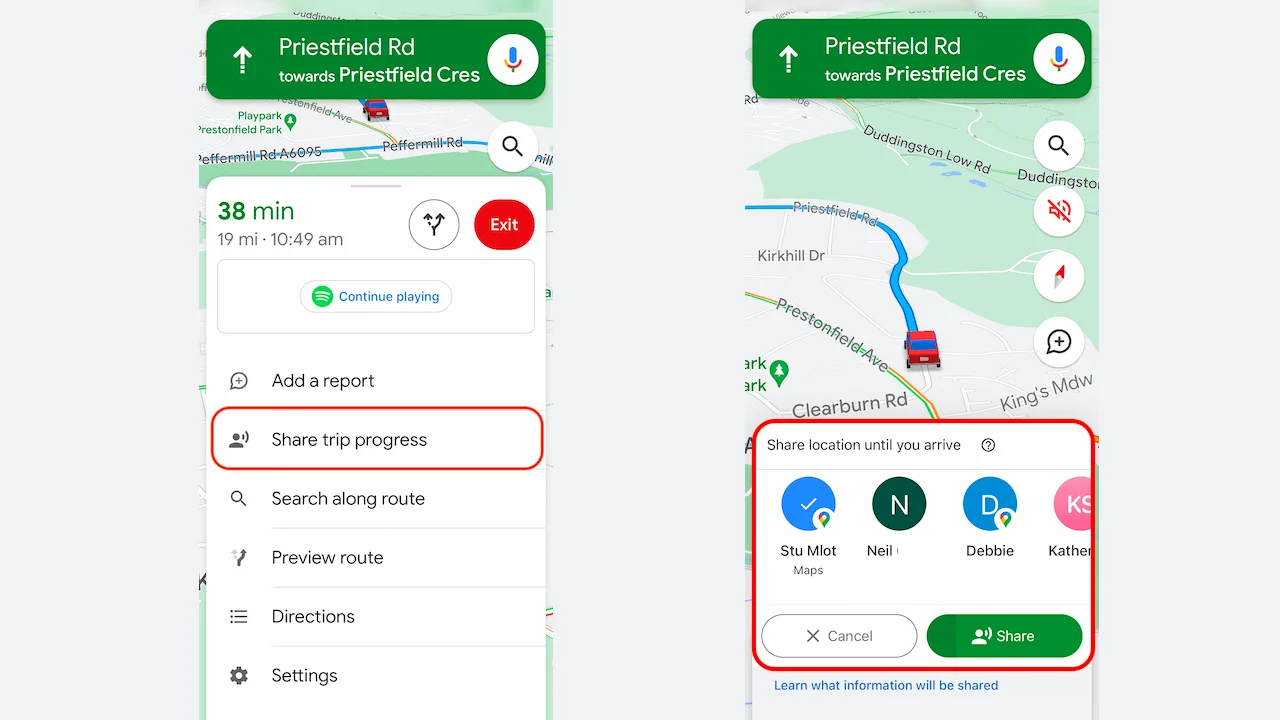
Google Maps is one of the most useful applications for finding places, getting directions, and share location with friends and family. Whether you want someone to find your home, meet you at a specific place, or track your journey, Google Maps makes location sharing simple and convenient.
In this guide, you will learn how to share location on Google Maps, send your live location, share a specific place, and stop sharing your location whenever you want.
What Is Location Sharing on Google Maps?
Google Maps location sharing allows users to share their current location with other people through a smartphone. You can share your real-time location for a specific period or send a location pin showing a particular place.
This feature is helpful when meeting friends, traveling, finding family members, or sharing your location with someone who needs directions.
Google Maps supports location sharing on Android and iPhone devices. However, live location sharing generally requires an internet connection and location services enabled on your phone.
How to Share Location on Google Maps
To let someone know where you are right now, just follow these easy instructions.
Step 1: Open Google Maps
On your iPhone or Android smartphone, launch the Google Maps app.
Make sure your phone’s GPS and location services are enabled.
Step 2: Find Your Current Location
Tap the blue location button on the map to display your current position.
A blue dot will appear showing where you are located.
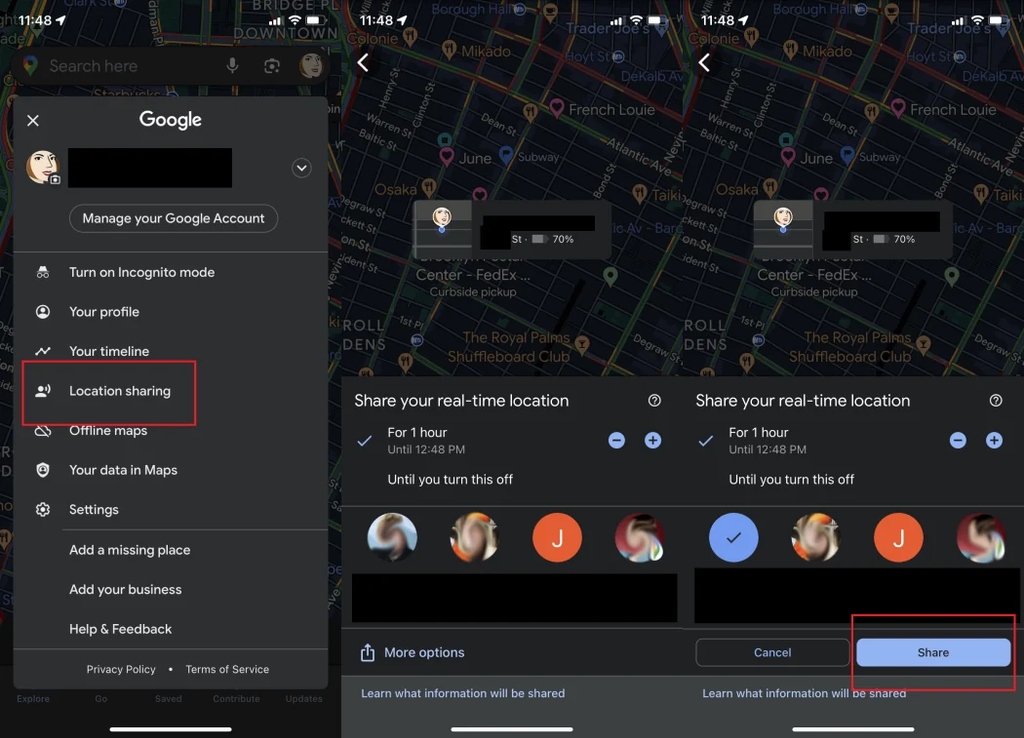
Step 3: Tap Your Profile Picture
In the upper-right area of Google Maps, tap your profile image.
A menu will appear with different options.
Step 4: Select Location Sharing
Choose the Location sharing option from the menu.
An option to let someone know where you are in real time will appear.
Step 5: Choose Sharing Duration
Choose the duration for which you wish to share your location.
You can choose a specific time period or continue sharing until you manually turn it off.
Step 6: Select a Contact
Choose a person from your Google contacts or select an available sharing option.
You can share your location using supported messaging applications, email, or a sharing link.
Step 7: Send Your Location
Tap the sharing option to send your location.
The recipient can open the shared location and view your position on Google Maps.
How to Share Live Location on Google Maps
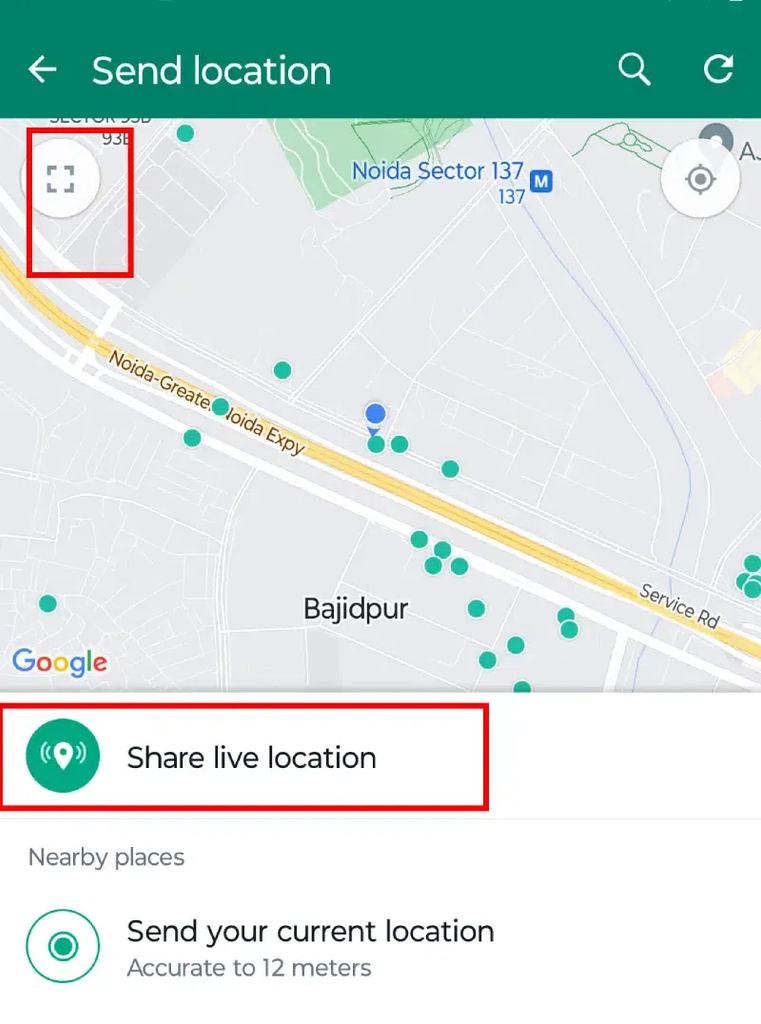
Live location sharing allows someone to see your location as you move.
To share your live location:
- Open Google Maps.
- Tap your profile picture.
- Select Location sharing.
- Tap Share location.
- Choose the duration.
- Select the person or application.
- Send your location.
The recipient can view your location on Google Maps while sharing remains active.
Live location sharing can be useful during road trips, meeting friends, and traveling to unfamiliar places.
How to Share a Specific Location on Google Maps
You can also share a specific place without sharing your live location.
Follow these steps:
- Open Google Maps.
- Search for the place you want to share.
- Tap the location or map marker.
- Open the location details.
- Tap Share.
- Select a messaging application or copy the link.
- Send the location to another person.
This method is useful for sharing restaurants, offices, hotels, homes, and meeting points.
Google Maps Location Sharing Features
The following table explains the different location-sharing options.
| Feature | Description |
| Current Location | Shows your present position |
| Live Location | Shares your real-time movements |
| Location Pin | Shares a specific place |
| Sharing Link | Allows recipients to open a shared location |
| Sharing Duration | Controls how long location sharing remains active |
| Stop Sharing | Ends location sharing |
| Google Contacts | Allows sharing with selected people |
| GPS Location | Helps determine your current position |
How to Stop Sharing Location on Google Maps
If you no longer want someone to see your location, you can stop sharing it.
- Open Google Maps.
- Tap your profile picture.
- Select Location sharing.
- Choose the person with whom you are sharing.
- Tap Stop.
Once you stop sharing, that person will no longer receive your updated location through Google Maps location sharing.
You can also review your active location-sharing settings to make sure you are sharing with the intended people.
Tips for Safe Google Maps Location Sharing
Share with trusted people: Only share your real-time location with people you know and trust.
Check sharing duration: Choose a suitable time limit instead of leaving location sharing active unnecessarily.
Review permissions: Make sure Google Maps has the location permissions required for the feature.
Protect your privacy: Avoid posting live location links publicly.
Stop sharing when finished: Turn off location sharing after reaching your destination or completing your journey.
Conclusion
Share location on Google Maps is an easy way to help friends, family, and other people find you or reach a specific destination.
With location sharing, live navigation, and location pins, Google Maps makes it convenient to communicate your position and share places.
Follow the steps in this guide to share your current location, send live location updates, and manage your privacy settings whenever needed.
Frequently Asked Questions
How do I let Google Maps know where I am?
Open Google Maps, tap your profile picture, select Location sharing, choose a duration, and select the person you want to share with.
Can I share my live location on Google Maps?
Yes. Google Maps allows you to share your real-time location with selected people for a chosen duration.
Can I share Google Maps location through WhatsApp?
Yes. You can share a Google Maps location link through WhatsApp or other supported messaging applications.
Can I share my location without internet?
Live location sharing generally requires an internet connection. You can share a saved location link, but recipients may need internet access to open it.
How do I stop sharing my location?
Open Google Maps, go to Location sharing, select the person, and tap Stop.


Post Comment