How to Use Google Maps App Offline: A Complete Guide
Google Maps is one of the most popular navigation applications for finding locations, exploring new places, and getting directions. However, internet connectivity is not always available, especially when traveling to remote areas or places with weak mobile signals. Fortunately, Google Maps allows users to download maps and use them offline.
In this article, we will explain how to use the Google Maps app offline, download maps, access navigation without the internet, and understand its limitations.
What Is Google Maps Offline?
Google Maps offline is a feature that allows users to download maps of specific areas and access them without an internet connection. Once a map is downloaded, users can search for locations and get driving directions within the downloaded area.
This feature is particularly useful when traveling internationally, driving through rural areas, or trying to save mobile data.
How to Download Google Maps for Offline Use
Follow these simple steps to download Google Maps on your Android or iPhone.
Step 1: Open Google Maps
Open the Google Maps application on your smartphone. Make sure you are connected to the internet before downloading a map.
Step 2: Search for Your Location
Enter the name of the city, town, or area you want to download in the search bar.
For example, you can search for Faisalabad, Lahore, Islamabad, or any other destination.
Step 3: Open the Location Details
Tap the name or address of the location to open its information panel.
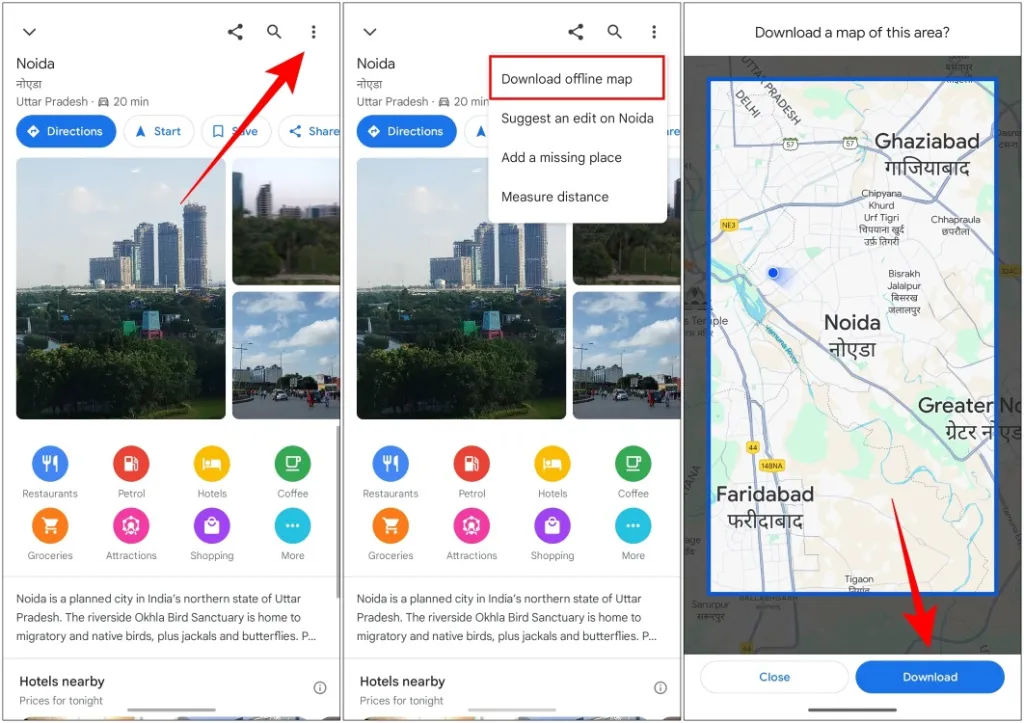
Step 4: Select the Offline Maps Option
Tap the three-dot menu or your profile picture and select Offline maps. Depending on your device and app version, you may also see a Download option directly in the location information panel.
Step 5: Choose Your Map Area
Adjust the map area using the selection box. Make sure the entire region you plan to visit is included.
Step 6: Download the Map
Tap the Download button and wait for the map to finish downloading.
Once downloaded, the map will be available even when your phone has no internet connection.
How to Use Google Maps Without Internet
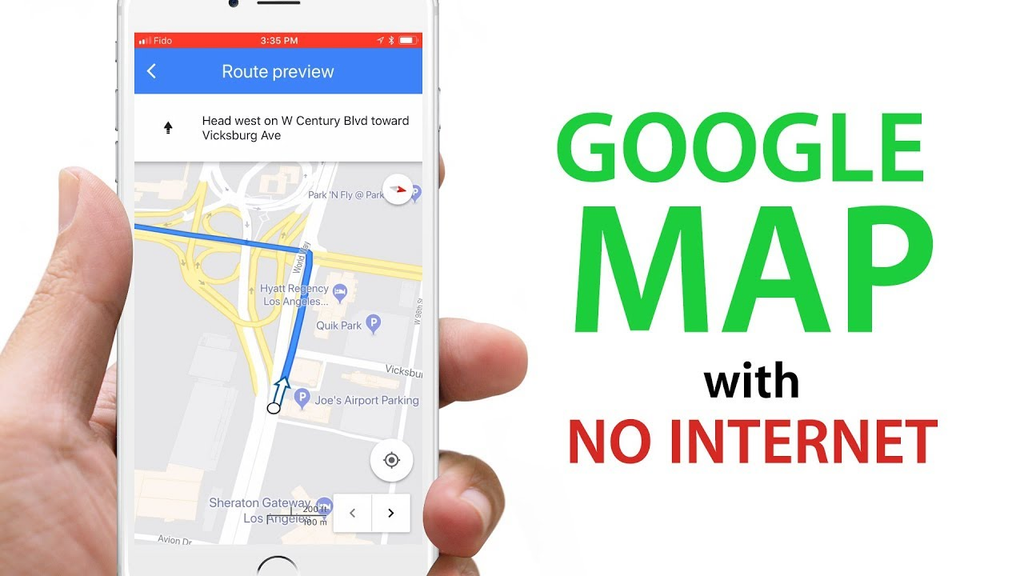
After downloading an offline map, you can use Google Maps without mobile data or Wi-Fi.
- Open Google Maps on your phone.
- Make sure your destination is within the downloaded map area.
- Enter your destination in the search bar.
- Select the destination and tap Directions.
- Choose the driving option and start navigation.
Google Maps can provide driving directions using the downloaded map. Your phone’s GPS can still determine your location without an internet connection, provided it can receive satellite signals.
Google Maps Offline Features
The following table explains which features are available when using Google Maps offline.
| Feature | Available Offline |
| View downloaded maps | Yes |
| Find your GPS location | Yes |
| Driving directions | Yes |
| Turn-by-turn driving navigation | Yes |
| Search locations within downloaded maps | Yes, with limitations |
| Walking directions | Not generally supported |
| Cycling directions | Not generally supported |
| Public transportation information | No |
| Live traffic updates | No |
| Real-time road closures | No |
| Updated business information | Limited |
| Downloaded map access | Yes |
Availability may vary depending on your device, region, and Google Maps version.
How to Update Offline Maps
Offline maps need to be updated regularly because roads, businesses, and other geographic information can change.
To update your downloaded maps:
- Open Google Maps.
- Tap your profile picture.
- Select Offline maps.
- Choose the downloaded map.
- Tap Update if an update is available.
You can also enable automatic updates in the offline maps settings. This helps keep your downloaded maps current.
Tips for Using Google Maps Offline
Download maps before traveling: Always download your destination map while you have a reliable internet connection.
Choose the correct map area: Include your starting point, destination, and nearby roads in the downloaded region.
Keep your phone charged: GPS navigation can consume battery power, so carry a power bank during long journeys.
Enable GPS: Your phone’s location services should be enabled for accurate navigation.
Check storage space: Offline maps require storage space on your smartphone. Remove old maps that you no longer need.
Use Wi-Fi for downloads: Downloading large map areas over Wi-Fi can help reduce mobile data usage.
Conclusion
Google Maps offline is a helpful feature for travelers, drivers, and anyone who needs navigation without an internet connection. By downloading maps in advance, users can access supported driving directions, search for locations, and navigate using GPS.
Although offline Google Maps does not provide live traffic updates, public transportation information, or every online feature, it remains a convenient solution for traveling through areas with limited connectivity.
Download your maps before leaving home, keep them updated, and enjoy a more reliable navigation experience wherever your journey takes you.
Frequently Asked Questions
Can I use Google Maps offline without the internet?
Yes. You can use downloaded maps for supported navigation features without an internet connection.
Does Google Maps offline work on iPhone?
Yes. Google Maps supports offline map downloads on compatible iPhones and Android devices.
Can I use Google Maps offline for walking?
Offline walking directions are generally unavailable. Downloaded maps primarily support offline driving navigation.
Does Google Maps offline show traffic?
No. Live traffic information requires an internet connection.
How much storage does an offline map need?
Storage requirements depend on the size and geographic coverage of the selected map. Larger areas generally require more storage.


Post Comment